
How to Join the JartexNetwork Minecraft Server

This article is intended for those who need help joining our server and exploring the Network! Follow the in-depth instructions below on what to do to join JartexNetwork
Open the Multiplayer Menu: After launching the game, start by opening the Multiplayer menu.
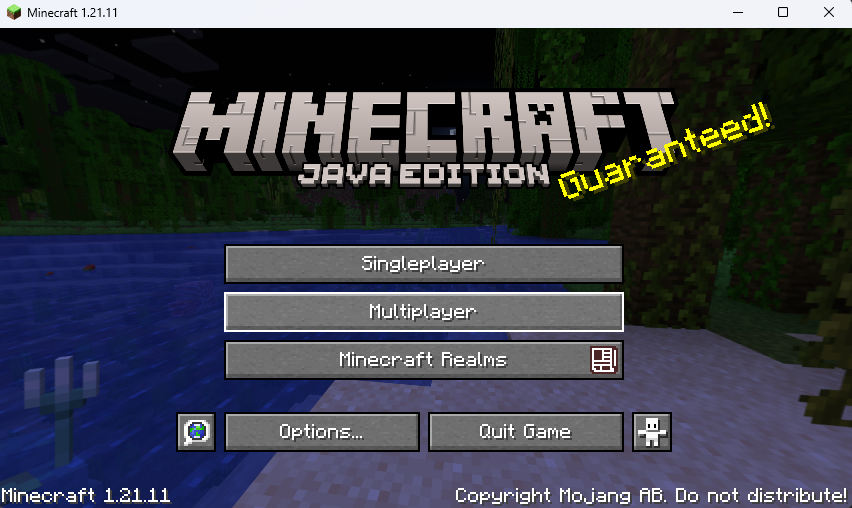
Add the Server: Click on the Add Server button located on the bottom right of the menu.

Enter Server Details:
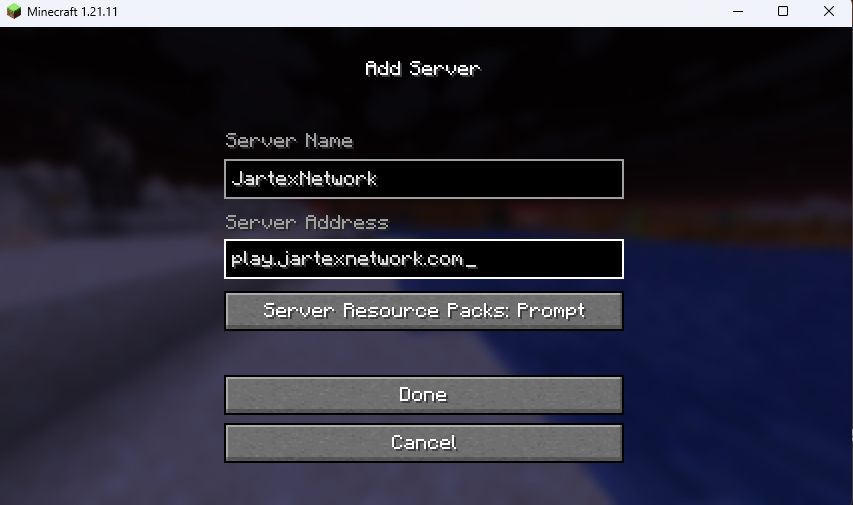
Join the Server: Click Done to add it to your server list. Then, select the server and click join Server.
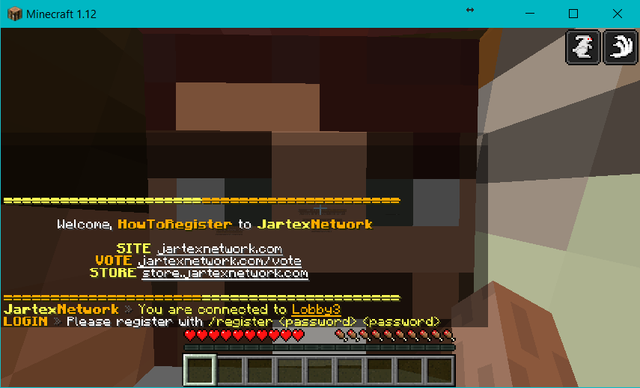
And that's it! You have now joined JartexNetwork for the first time, you will now be able to play all the gamemodes the server has to offer!
Once you leave the server and decide to come back later, you will be prompted to enter the password you created earlier to log in. You can do so using the /login [password] command (replace [password] with the password you created).
JartexNetwork is one of the largest Minecraft community networks that offers various game modes and experiences to players, including: Factions, Skyblock, Lifesteal, Bedwars, KitPVP and many more.The IP address for JartexNetwork is:
play.jartexnetwork.com
play.jartexnetwork.com
Joining the Server
In order to join JartexNetwork, launch your Minecraft client and add the IP address to your server list. You can use any version from 1.8.9 to the newest versions.Open the Multiplayer Menu: After launching the game, start by opening the Multiplayer menu.
Add the Server: Click on the Add Server button located on the bottom right of the menu.
Enter Server Details:
- Type JartexNetwork in the Server Name slot.
- Type play.jartexnetwork.com in the Server Address slot.
Join the Server: Click Done to add it to your server list. Then, select the server and click join Server.
Register Your Account
When you join for the first time, you must register. Press the T key on your keyboard to open the chat window, then type the command /register [password] [password] (replace both [password] placeholders with a unique password of your choice).
Tip
Make sure your password is highly secure by mixing uppercase letters, lowercase letters, numbers, and special characters.
Once you leave the server and decide to come back later, you will be prompted to enter the password you created earlier to log in. You can do so using the /login [password] command (replace [password] with the password you created).
Video Guide
This video shows the previous steps in detail. Make sure to watch it carefully and do not miss out on any steps. Click HERE to watch the video.Security Tips
Here are some tips that may help you in your experience:- You can link an email to your account by using
/email [your email address]. By linking your email, you can reset your password if you forgot it using the/resetpasswordcommand in one of the login lobbies. A new password will be sent to the email you linked. So, make sure it is yours! - You can further increase your account security by adding 2FA. First, type the
/2fa enablecommand. A secret code and a QR code link will appear in the chat. Then, head to any authentication application on your phone (e.g. Google or Microsoft Authenticator), and paste the secret code (or scan the QR code). Lastly, a 6-digit code will appear in the authenticator. Copy it, head back in-game, and type/2fa confirm (code). You will be asked to enter the 2FA code every time you join the server again. - If you join the server for the first time, and it prompts you to log in instead of register, then that means the username you joined with is already registered on our network. You will have to join using another username.
- If you own a premium copy of Minecraft, after you join the server, you can execute the
/premiumcommand (you will be prompted to type it again for confirmation). After you activate it, you can now join the server without typing a password every time.
If you need any further assistance, you can go ahead and open a support ticket and the staff team will answer your questions as soon as possible.
We hope you enjoy your time on our network. Good luck, and have fun!